
Build websites
- Input
- Ideas + source material
- Tool
- Claude Code
- Output
- Websites
Claude Code is part of my website-building workflow.
01My AI creative workflow
Building websites, turning source material into useful pages, and making promo videos with code. I bring the art and ideas, guide the tools, and decide what ships.
Claude Code is part of my website-building workflow.
I used Cursor with Claude Opus 5.5 to turn a yoga PDF into a website.
I’ve made promo videos with Claude Opus 5.5 using the BRAG repository.
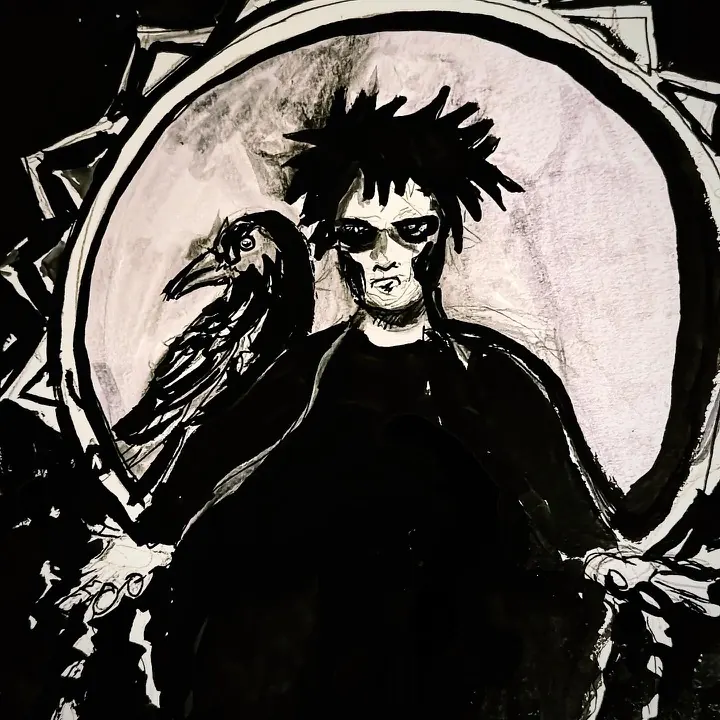
My original artwork is the starting point for the Wolftoons creative projects.
02Main example: Wolftoons
My website brings together my original artwork, Inktober drawings, sketchbook work, paintings, and creative experiments.

Art by Aaron J Wolf
wolftoons.com
My home for the art and the projects built around it.
Visit Wolftoons03More website projects
A website that organizes Boca Raton voting information in one place.
Open the voting guide (opens in a new tab)An instructor’s PDF turned into a website, built in Cursor with Claude.
Open the yoga website (opens in a new tab)A step-by-step guide to painting Fly Guy, a pumpkin fly character.
04Video and animation
Video and animation are part of the mix too. I use different tools for the code, visual concepts, and image or video experiments.
Code-driven promo videos built around my projects.
Explore the BRAG repositoryBrand identity and visual concepts developed around my original artwork.
Part of my creative toolbox for image, video, and animation experiments.
Instagram video examples
Here are examples of videos I created with Claude Opus 5.5 and the BRAG repository.
05My wider setup
Layout and typography refinement, implementation, and testing.
My local command center on Mac Studio, connected to a headless Mac mini called Brain.
Grokbot · MetaMuse · Gemini
I move instructions, outputs, and useful context between tools myself. Hermes keeps project context and handoff notes in the shared vault.
Workflow in four steps: Aaron directs and reviews the creative tools. Aaron hands off context from the creative tools to Hermes manually. Hermes writes to the shared vault and is its only writer.
I direct and review
I hand off context manually
Hermes writes · one writer
Manual handoffs, not automatic synchronization. Hermes is the only writer to the shared vault.
I carry the instructions, outputs, and useful context between tools. Hermes writes to the shared vault; the other tools are not directly connected to it. I direct the work, review the results, and approve what ships.


